Saturday, 23 January 2016

How to show missing dates on the view

Turn-off show missing dates data, then it will not show the Missing data, it means will show only data which is available in database.
t30.PNG

observe the following image, where there is no data for 06-03-2016 (DD-MM-YYYY).
t31.PNG
I have turned-on sow missing values ( As above image). Then we are getting the data for 06-03-2016 (DD-MM-YYYY) and  that is NULL
t32.PNG
=============

Another Example
t33.PNGt34.PNGt35.PNG

Missing dates are having sales volume null.

How t remove Future values from the view?

We can handle the future dates from the view as below.
1) Create a calculated field using the following syntax.
Name: Dates - till today
if [Order Date] <= today() then [Order Date] end
2) Drag the [Dates - till today] on to the view ( Work Area).
3) Drag the [Dates - till today] on to Filter Shelf, select "Relative Date" then select "Special Tab" then select "non-null Values".
4) Now report does not show future dates.

How to get the sales for specified period, it means from specified date to specified date.

1) We have to create two Parameters, 1 is for From Date, another is for to Date.


2) Create a calculated field using two Date Parameters as below image.


3) Now right click on two Parameters then select the option "Show Parameter Control".
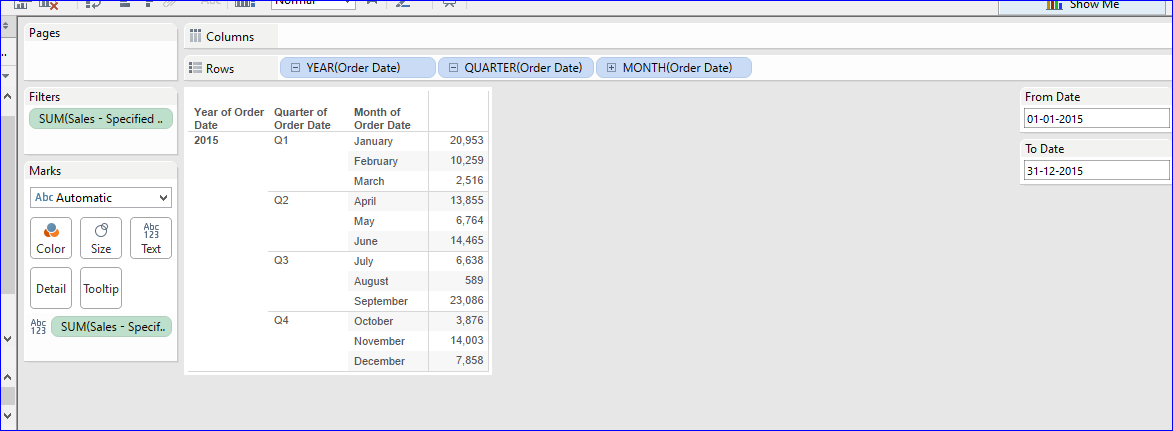
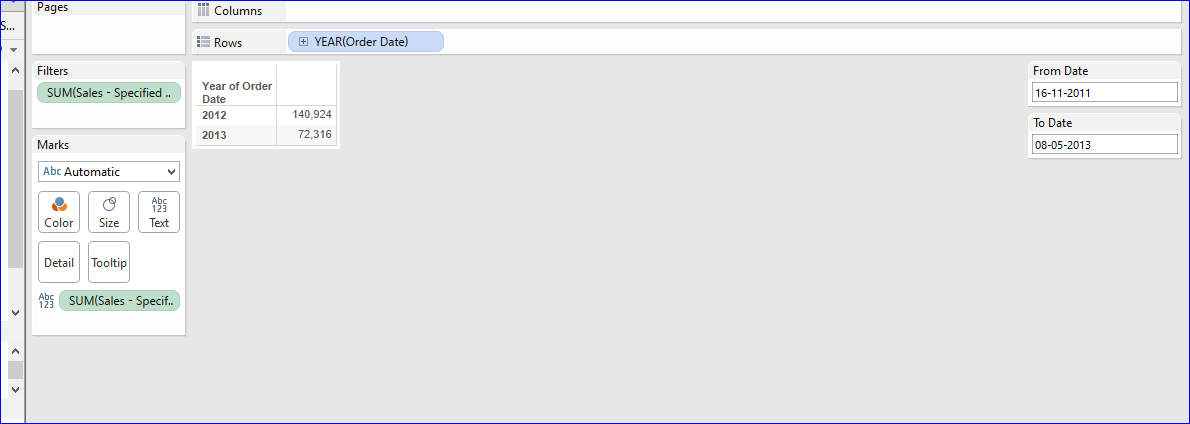
4) Now we can select the Date Range with the help of From Date Parameter To  Parameter.


Now we can handle the non selected dates data - Nulls handling.
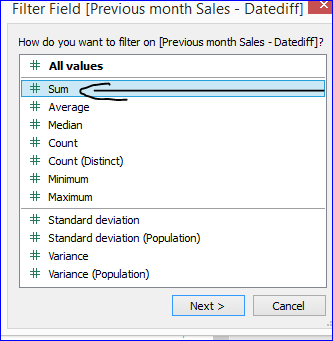
Drag the calculated field on to filters shelf then select "Sum" option then select "Special" tab then select "non-null Values".

Now report is showing the data for selected Dates Range.

Tuesday, 12 January 2016

How to get the Top 10 Customers based up on Sales Volume


There are several ways to get the Top 10 Customers based upon Sales Volume, Sets concept is used to illustrate here.

1) Right click on [Customer Name], click on "Create" then click on "Set".

2) Define the set Name, and select the field name [Sales] , and few more are as below image
TOP, SUM, 10.

 3) Drag the [Customer Name] on to Rows shelf, drag the Set onto Filters shelf.
4) Now view shows our desired result "Top 10 Customers based up on Sales Volume".


Conditional Formatting - Compare Current Month Sales and Previous Month Sales


1) to create Conditional Formatting by Compare Current Month Sales and Previous Month Sales, initially have to create sales for Current Month Sales and Previous Month by creating the calculated fields.


2) Now we can create a calculation to apply the formatting as below pictures.


3) Drag the above calculated field, Tableau will apply the colors to the view.


Monday, 11 January 2016

How to Show Previous month Data in the Report -


We can show the Previous month data in several ways,
1) Crating Calculated Fields --- again Several Ways by creating calculated fields
2) Relative Dates

Showing Previous month Data Crating Calculated Fields
A) Datediff

1) Drag all required dimensions on to the view.
2) Create calculated field as below.

3) Add the [Sales] and the above calculated fields on the view.


4) Now Calculated field is showing the Data for Previous month only for rest of the dates showing nulls.
5) There is no need of null data on the view, so we can remove the nulls in the following way.
6) Drag the Calculated field on to Filters shelf then select "Special Tab" then select the  "Non-null values" option.


7) Now report shows exactly what we want - Previous Month Data.
===================
B) Using Relative Date Filters - Showing Previous Month Data

1) Drag the [Order Date], [Sales] on to the view.
2) Drag the [Order Date] on to filters shelf then select "Relative Date Filter".


================
We can show previous month sales data with in the same Year by using the following Syntax.




Sunday, 10 January 2016

How to show Current Year, Previous Year, Sales figures one beside of another in the Chart (Use Calculations).

1) Create calculated fields to get the Current Year, Previous Sales as shown below images.


2) Then add the [Region] & the above calculated fields to the view.